How do I execute a command in the device?
Every siliXcon device (controller, BMS, display) runs its own operating system, YOS, with its own command line: the YOS/Shell. Commands such as help, pr, save or reboot run inside the device. You send them from your PC in one of two ways:
- term: you type the commands, as in a console. Best for several commands in a row and for scripts.
- emGUI: you open the command's dialog, fill in its arguments and click Execute!.
Windows CMD, PowerShell and bash are the command line of your PC, not of the device. A device command typed there ends with 'save' is not recognized ..., and a PC command typed in term ends with command '...' not found. See PC command line vs. device command line.
In term
-
Connect the device and set up the connection in LaunchPad (Options...). If you are not sure about the address, see Addressing.
-
Start term in one of these ways:
- the term button in LaunchPad,
- External tools → term in the device's context menu in emGUI,
- type
termon the PC command line. With SWTools 4, open the command line with LaunchPad's Command prompt button, which sets up the connection for you.
-
Press Enter. The device prints its header and asks
Login as:. If nothing comes back, the device is not responding: check the connection. -
Log in. Press Ctrl+A to log in automatically with the credentials from the connection options, or type
guestas the user name andguestas the password for the default access level. -
The device prompt appears, for example
AX-serpent#>. Type the command with its options and arguments, and press Enter:AX-serpent#>help version-> version: print meta/versionAX-serpent#> -
When the prompt comes back, the command has finished. Press Esc to close term.
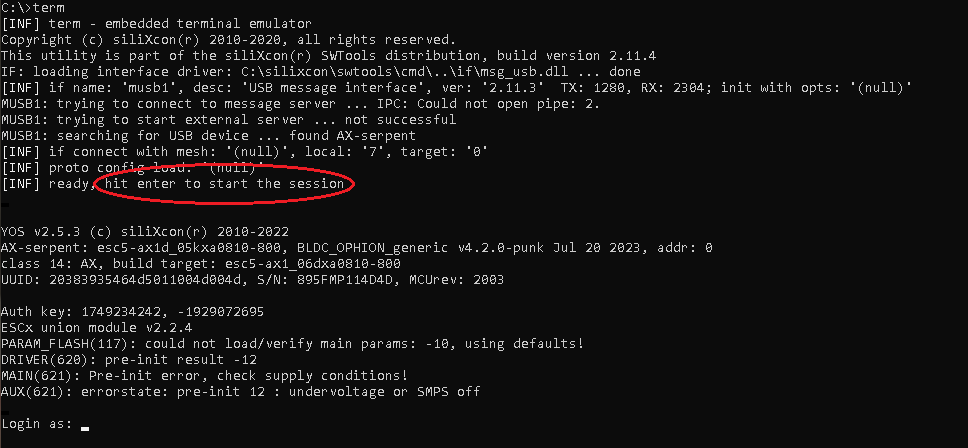
A few commands to start with:
| Command | What it does |
|---|---|
help | Lists the device's commands. help save prints the help line of one command. |
ls -l /driver | Lists a folder of the device's tree. |
st | Lists the state variables in the current folder. |
pr -d | Lists the parameters changed from their defaults. |
set <path> <value> | Writes a variable. |
save | Saves the parameters to the device's memory. It asks (y/n); save -y does not ask. |
- Options always come before arguments:
ls -l /driver, notls /driver -l. - A negative return value means the command failed. The last return value is in
/vars/retval. - Tab completes names, Up recalls the previous command and Ctrl+C stops a running script.
- The device's
helptext is only a short hint. The full syntax is in YOS commands and in your application's documentation.
Some commands act on the hardware: run turns the motor and reboot restarts the device. Do not run them on a device that is driving a vehicle or a machine.
The term guides go further: term basics I, term basics II and term basics III: scripting.
In emGUI
- Open emGUI and search for nodes. The device appears in the tree.
- Expand the device and open its
commandsfolder. - Double-click the command. Its dialog opens.
- Put each argument in its own box, Arg1 to Arg4, options first. For
ls -l /driver, write-lin Arg1 and/driverin Arg2. - Click Execute!. State shows
FINISHEDwhen the command ends, Result shows its return value (negative means it failed) and Output shows the text it printed. - If the command asks a question, the Input box is highlighted. Type the answer there, for example
yforsave.

- The device's context menu has ready-made dialogs for the common jobs: Save / load parameters, Restore parameters, Show logs, Change address and Reboot. They run the commands for you.
- The dialog takes four arguments at most. For a longer command, or several commands in a row, use term.
More in emGUI basics II: Tweaking and on the emGUI page.
PC command line vs. device command line
Two different command lines are involved, and both can be open on the same screen. The term window itself shows both: in the screenshot above, the first line, C:\>term, is the PC command line, where term is a program the PC starts. Everything below it comes from the device, and after the login the prompt is the device's:

| PC command line | Device command line | |
|---|---|---|
| What it is | CMD, PowerShell or bash on Windows, Terminal on macOS and Linux | The YOS/Shell, running inside the device |
| Where commands run | On your PC | In the device |
| How you get there | The Start menu, or LaunchPad's Command prompt button | term, or the emGUI command dialog for a single command |
| Prompt | C:\silixcon>, PS C:\silixcon>, user@pc:~$ | AX-serpent#/driver>: the device's basename, #, the folder in the device, > |
| Commands | Programs on the PC: term, emgui, yosctl, bl_srm, launchpad, dir | The device's commands: help, ls, st, pr, set, save and those of your application |
| Paths | Files on the PC disk: C:\silixcon\setup.ys | Entries in the device's tree: /driver/temp |
| Scripts | .bat, .cmd, .ps1, .sh | .ys YOS scripts, which term sends to the device |
| Help | term -?, yosctl -? | help, and the YOS commands pages |
| Leaving | exit closes the window | Esc closes term and you are back at the PC prompt; logout ends the device session |
Same name, different command
Some commands exist on both sides and do different things. Look at the prompt before you type.
| You type | On the PC command line | In the device (term) |
|---|---|---|
help | CMD lists its own commands. | Lists the device's commands. |
set | CMD sets an environment variable of the PC session, for example set addr=0 with SWTools 3. | Writes a device variable: set <path> <value>. |
cd | Changes the folder on the PC disk. | Changes the folder in the device's tree, for example cd /driver. |
ls | PowerShell and bash list the PC's files. CMD has no ls of its own. | Lists the device's tree. |
echo | Prints text on the PC. | Prints text from the device. echo \27 closes term. |
term | Starts the SWTools term program. | The device's own term command: sends a line to another device over CAN or UART, or opens a nested terminal to it. |
Which side am I on? Read the error message
| Message | What happened | What to do |
|---|---|---|
'save' is not recognized as an internal or external command, operable program or batch file. | A device command was typed in CMD. | Start term, log in and type it at the device prompt. |
The term 'save' is not recognized as the name of a cmdlet, function, script file, or operable program. | The same in PowerShell. | The same. |
bash: save: command not found | The same in bash. | The same. |
command 'yosctl' not found, try 'help' to list commands | A PC command was typed in term, so the device was asked to run it. Or the device has no command of that name. | Press Esc to leave term and type it at the PC prompt. For a device command, check the name with help. |
execute restricted | Your login does not allow this command. | Log in with the credentials for your application. |
Run a device command from the PC command line
A script on the PC can still execute device commands, through a tool that carries them into the device. The PC command line runs the tool, and only the part after it reaches the device:
yosctl cmd exec <command> [arguments]runs one device command and returns. For example,yosctl cmd exec save -ytyped in CMD saves the parameters in the device. See yosctl.term --script=setup.ys(SWTools 4) sends the YOS commands insetup.ysto the device and exits;term setup.ysstays open afterwards. See term scripts.
Other ways in
- Serial terminal. Over UART, any serial terminal program (PuTTY, CoolTerm) reaches the device command line directly. See UART.
- AI agent. An AI agent connected to emGUI runs device commands through emGUI. See AI agents (MCP).