Containers
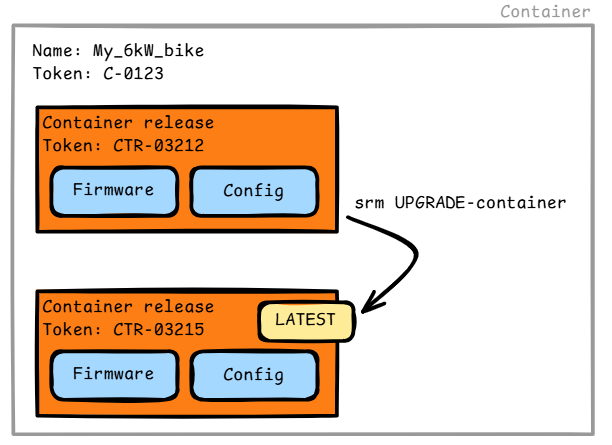
A container is a system to deliver a firmware with baked-in configuration during an upgrade.
The containers are managed by you. You can decide, when a new upgrade is released, what firmware is used and what configuration is applied.
Concepts
| Term | Description |
|---|---|
| Container | A named upgrade channel tied to a board + basename. Devices are assigned to containers. |
| Container release | A single firmware release entry inside a container, with its own config, approval state, and flags. |
| Available | Flag on a container release. When set, devices can see and download this release. |
| Latest | Flag on a container release. Only one release per container can be marked Latest at a time. |
| C or CTR token | An auto-generated identifier for the container, used in the SRM upgrade command. Starting with C- or CTR- |
Please see a difference between a service token and a container token in the Service Tokens documentation.
Creating a container
- Navigate to My Containers in the portal.
- Click New Container.
- Select the Board and Basename for the container. The available basenames are filtered based on the selected board.
- Optionally enter a Name — if left empty, one is generated automatically.
- Optionally enter a Note for the container.
- Click Create. You are redirected to the container detail page.
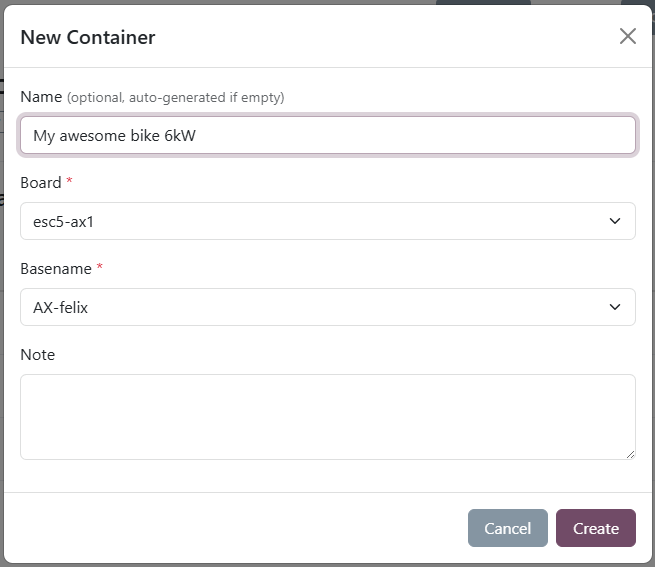
The boards and basenames available for selection are determined by your company's configuration in the SRM system. If you do not see the expected options, contact your siliXcon representative.
Container detail page
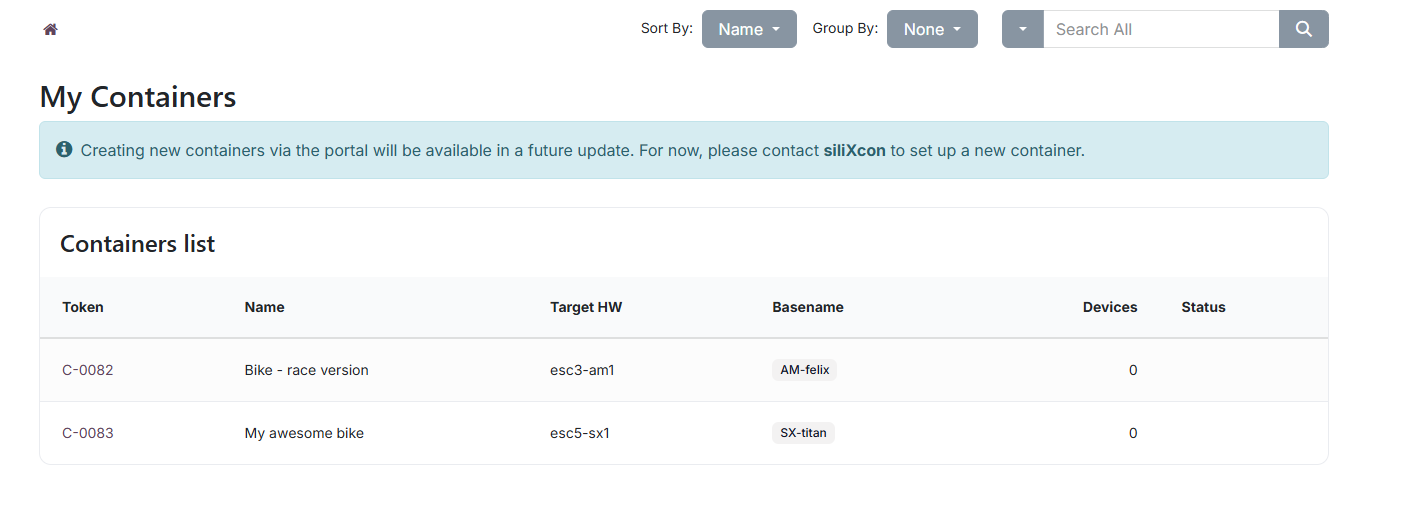
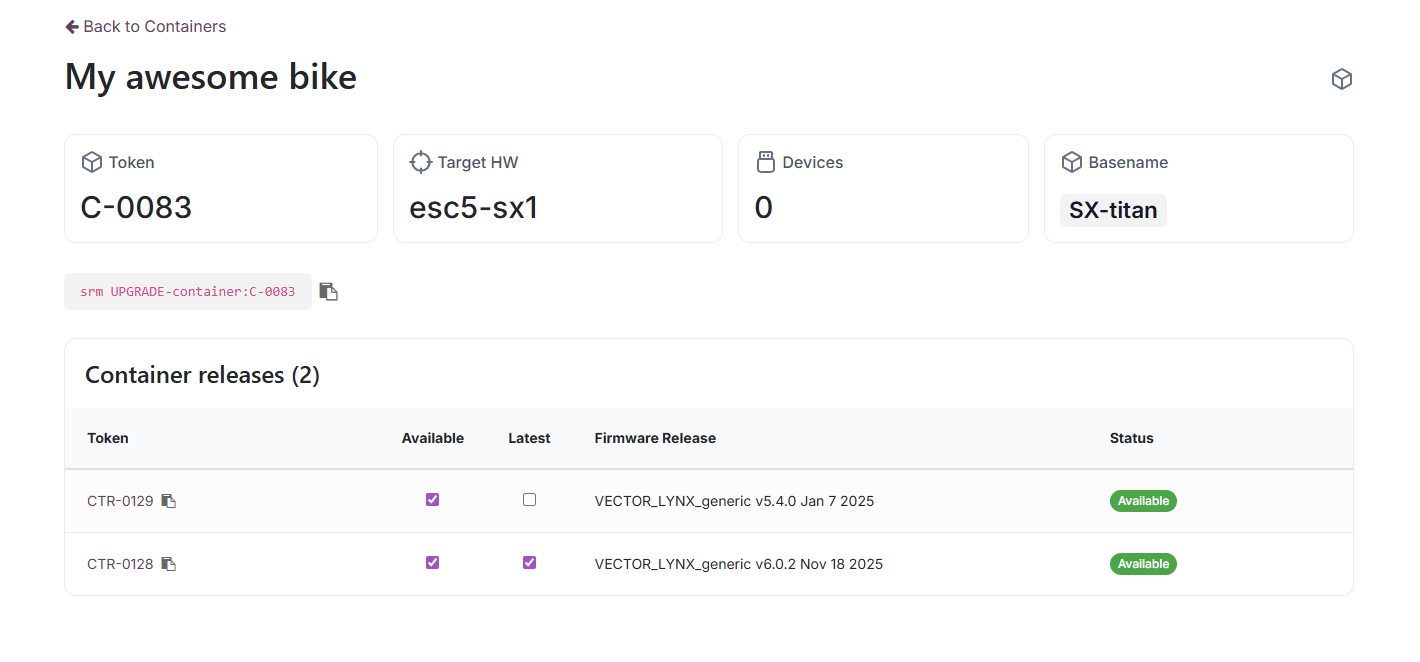
The container detail page shows:
- Token — the container identifier used in upgrade commands
- Target HW — the board this container is built for
- Basename — the firmware basename
- Devices — number of devices assigned to this container
- SRM upgrade command — a copyable command for upgrading devices using this container
SRM upgrade command
The upgrade command is displayed at the top of the container detail page:
srm UPGRADE-container:<token>
Click the clipboard icon to copy it. This command is used by the srm tool to upgrade a connected device using the firmware release marked as Latest in this container.
Managing container releases
Container releases are listed in a table on the container detail page. Each row shows the release token, available/latest flags, firmware release name, and approval status.
Adding a container release
- Click New Release on the container detail page.
- Select the Firmware variant from the dropdown.
- Use the type filters (Stable, Testing, Nightly) to narrow the release list.
- Select the Firmware release.
- Optionally enter a Config (configuration text applied during the upgrade).
- Optionally enter a Note.
- Click Create.
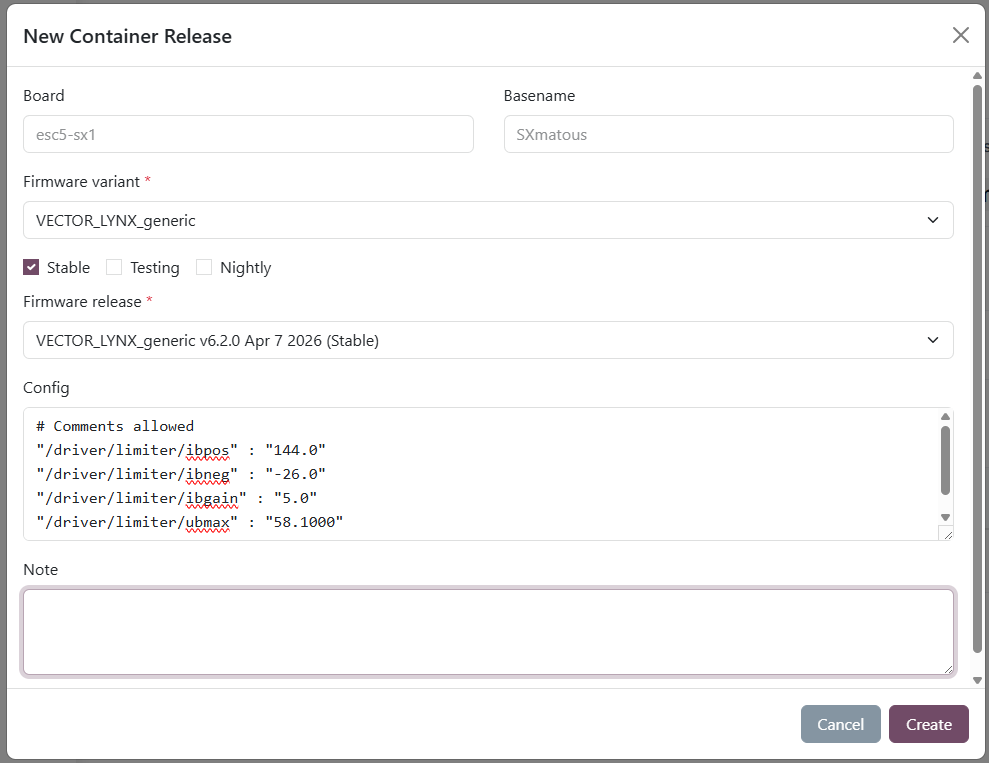
The new release is created in the New state.
Editing a container release
Click the pencil icon next to a release to open the edit dialog.
- In the New state, all fields (firmware release, config, note) can be modified.
- In the Waiting for Approval or Approved state, only the Note can be edited.
Approval workflow
Container releases follow a three-stage approval workflow:
| State | Description |
|---|---|
| New | Just created. Fully editable. Not visible to devices. |
| Waiting for Approval | Submitted for review by siliXcon. A configuration build is triggered automatically. This usually takes a few minutes. |
| Approved | Reviewed and approved by siliXcon. Can now be marked as Available and Latest. |
To submit a release for approval, open the edit dialog for a release in the New state and click Validate.
Only releases in the Approved state can be marked as Available or Latest. Attempting to set these flags on a non-approved release will result in an error.
Available and Latest flags
- Available — when checked, the release is visible and downloadable by devices assigned to this container. Can only be set on Approved releases.
- Latest — marks the release as the default upgrade target. Only one release per container can be Latest at a time. Setting a new release as Latest automatically clears the flag on the previous one.
A Latest release must also be Available: setting a release as Latest automatically makes it Available, and removing the Available flag from a release that is Latest automatically clears the Latest flag as well.
Viewing the release configuration
Click on a release Token in the table to open a full-screen view of the configuration text. You can copy it using the Copy config button.
Firmware release link
The Firmware Release column links to the firmware release detail page. Hover over the link to see a tooltip with the release notes (from siliXcon and your own notes, if any).
Container status indicators
On the container list page, status badges indicate potential issues:
| Badge | Meaning |
|---|---|
| No release available | No container release has the Available flag set. |
| No latest release | No container release is marked as Latest. |
Typical workflow
- Create a container for your board and basename.
- Add a container release, selecting the desired firmware and entering any config.
- Validate the release to move it to Waiting for Approval.
- Wait for siliXcon to approve the release.
- Once approved, toggle Available and Latest on the release.
- Assign devices to this container (done on the device detail page or during manufacturing).
- Run the upgrade command on the device:
srm UPGRADE-container:<token>
You can have multiple container releases in a single container — for example, one stable release marked as Latest and a testing release marked as Available but not Latest. This way, devices will upgrade to the stable release by default, but technicians can manually select the testing release if needed.