Upgrade Rights
Upgrade rights control what firmware operations are allowed on your devices. They determine whether a device can upgrade to a specific release type, perform a container upgrade, or switch to a different container.
This prevets a customer to switch to a different container and unlocking more power!
Availability
The upgrade rights feature is an optional add-on that can be:
- Purchased — as a standalone feature from siliXcon.
- Earned — included automatically above a certain annual device volume at no extra cost.
When the upgrade rights feature is not active, all devices use company defaults and no overrides or service tokens are accepted. Contact siliXcon to enable or check your eligibility.
An active upgrade rights subscription has an expiration date displayed on the Company Settings page. When the feature expires, the system reverts to company defaults only.
Available rights
There are five rights that control firmware operations:
| Right | Description |
|---|---|
| Allow upgrade to Stable | Allow upgrading to firmware releases marked as Stable. |
| Allow upgrade to Testing | Allow upgrading to firmware releases marked as Testing. |
| Allow upgrade to Nightly | Allow upgrading to firmware releases marked as Nightly. |
| Allow container upgrade | Allow upgrading the firmware within the device's current container. |
| Allow switching containers | Allow switching a device to a different container. |
Rights resolution
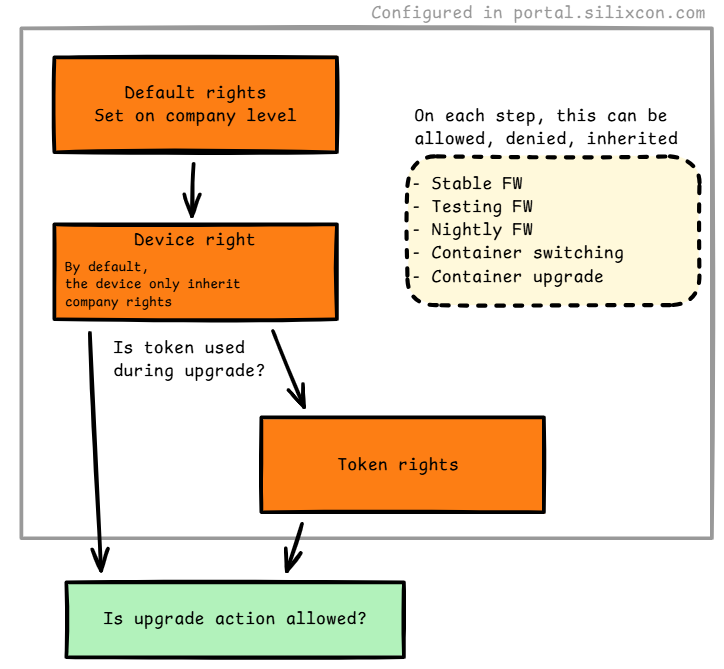
When a device requests a firmware upgrade, the SRM system resolves the effective rights using a three-level override model. Each level can override the previous one:
- Company defaults — base rights set on the Company Settings page. These apply to every device in the company.
- Device-level overrides — per-device overrides configured on the device detail page. These override the company defaults for that specific device only.
- Service token overrides — if a service token is supplied in the upgrade request, its rights are applied last, overriding both company and device settings for that single request.
Override values
At the device and token level, each right can be set to one of three values:
| Value | Effect |
|---|---|
| Inherit | Use the value from the previous level (company or device). |
| Allow | Explicitly enable the action, regardless of the previous levels. |
| Deny | Explicitly disable the action, regardless of the previous levels. |
At the company level, rights are simple on/off toggles.
Setting company defaults
- Go to Company Settings in the portal.
- In the Default upgrade rights section, toggle each right on or off.
- Click Save defaults.
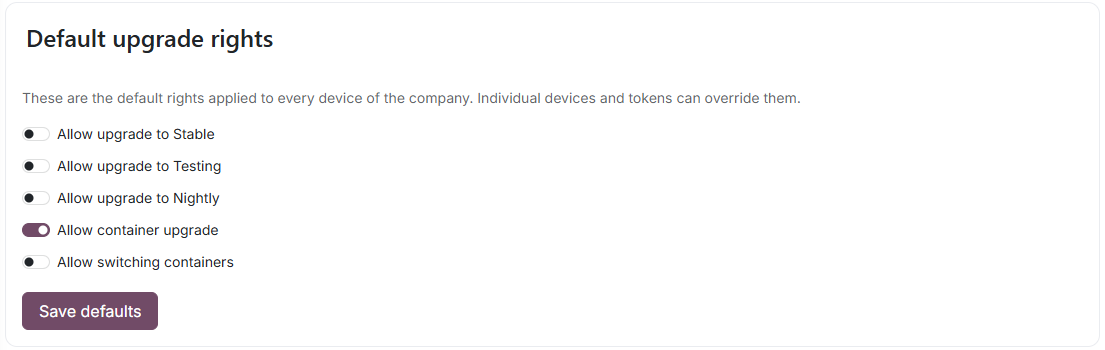
These defaults apply to all devices in the company unless overridden at the device or token level.
Device-level overrides
Device-level overrides allow you to grant or restrict rights on a specific device without affecting the rest of the company.
- Open the device in the portal (My Devices → device detail page).
- In the Upgrade rights section, set each right to Inherit, Allow, or Deny.
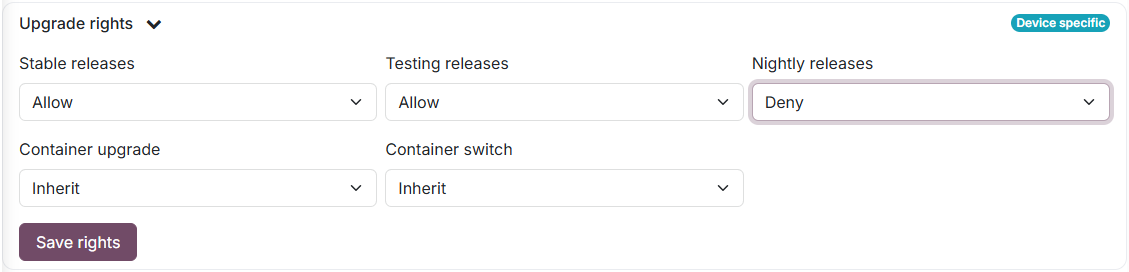
Device-level overrides are ideal when you need to grant access to a specific person or device without the risk of a service token leaking. Since the override is tied to the device's serial number, it cannot be used on other devices.
Service token overrides
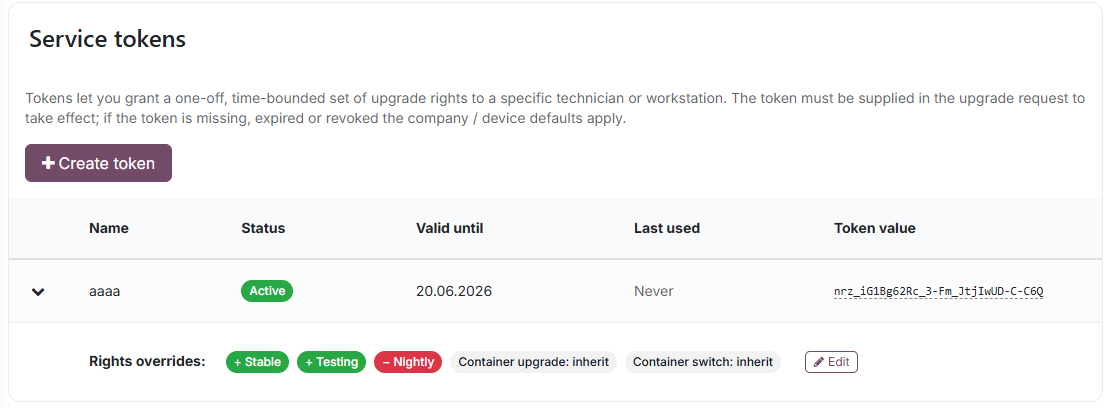
Service tokens are time-bounded API tokens that apply rights overrides during a single upgrade request. They are the highest priority in the resolution chain.
See Service Tokens for details on creating and managing tokens.
Use cases
Manufacturing: restrictive defaults with broad token access
-
Company defaults: enable only Allow container upgrade. Devices can receive firmware from their assigned container, but cannot switch containers or use testing/nightly releases.
-
Manufacturing token: create a service token with Allow container upgrade → Allow and Allow switching containers → Allow. This lets the manufacturing PC upload firmware and change containers during production.
-
R&D token: create a token with all five rights set to Allow. R&D engineers get full access to test any firmware version and container configuration. Use a shorter lifetime (e.g. 30 days) to enforce regular renewal.
Model upgrade: switching a container remotely
When a customer purchases an upgrade to a higher-power model (e.g. paying for more power from the controller):
- The customer provides the serial number (SN) of the device.
- In the SRM backend, the company switches the device's container assignment to the new container.
- The customer runs a standard container upgrade:
srm UPGRADE-container
- The device downloads the firmware from the new container and completes the upgrade.
The customer does not need a service token — only the Allow container upgrade right (the company default). The container switch is performed in the backend.
External beta tester: per-device override
When an external beta tester should test new firmware on their specific device, but you do not want to issue a service token (because tokens apply to all devices and could leak):
- Open the tester's device in the portal (My Devices → device detail page).
- Set Allow upgrade to Testing → Allow (and any other rights as needed).
- The tester can now upgrade their device to testing releases — but only that specific device. Other devices remain restricted by company defaults.